By the end of this you'll have Kaelen Thornwood as two downloadable files. A GLB you can drop onto a virtual tabletop, and an STL scaled for printing at 32mm. He's the sample ranger already sitting in your account, and he already has artwork, which is the one thing this needs to get going.
Pick the art it sculpts from
Open Kaelen's Studio and you'll find a Miniature tab alongside the others. It shows up on any character, NPC or monster once there's artwork to work from.
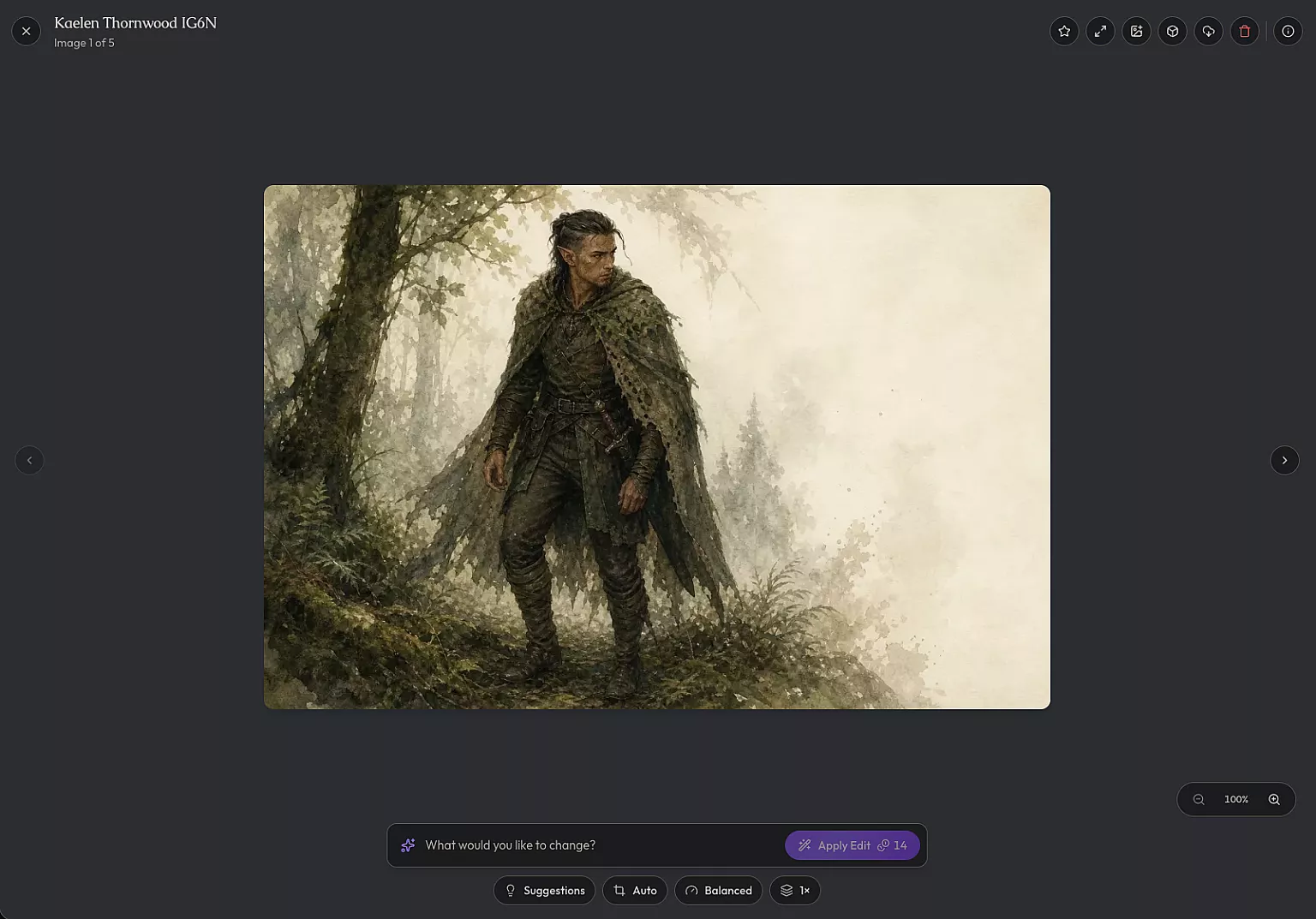
If you're already looking at the art, there's a shortcut. Open an image in the artwork viewer and hit Make miniature. That drops you onto the Miniature tab with the image already picked, and a banner confirms it reads "Brought the art you were looking at — swap it below if you'd rather use another."
Either way you land on the same card, headed Create Miniature. Underneath it sits a grid of Kaelen's art, newest first, with a star on whichever image is his primary. The tile you pick takes a coloured ring and a check mark in the corner.
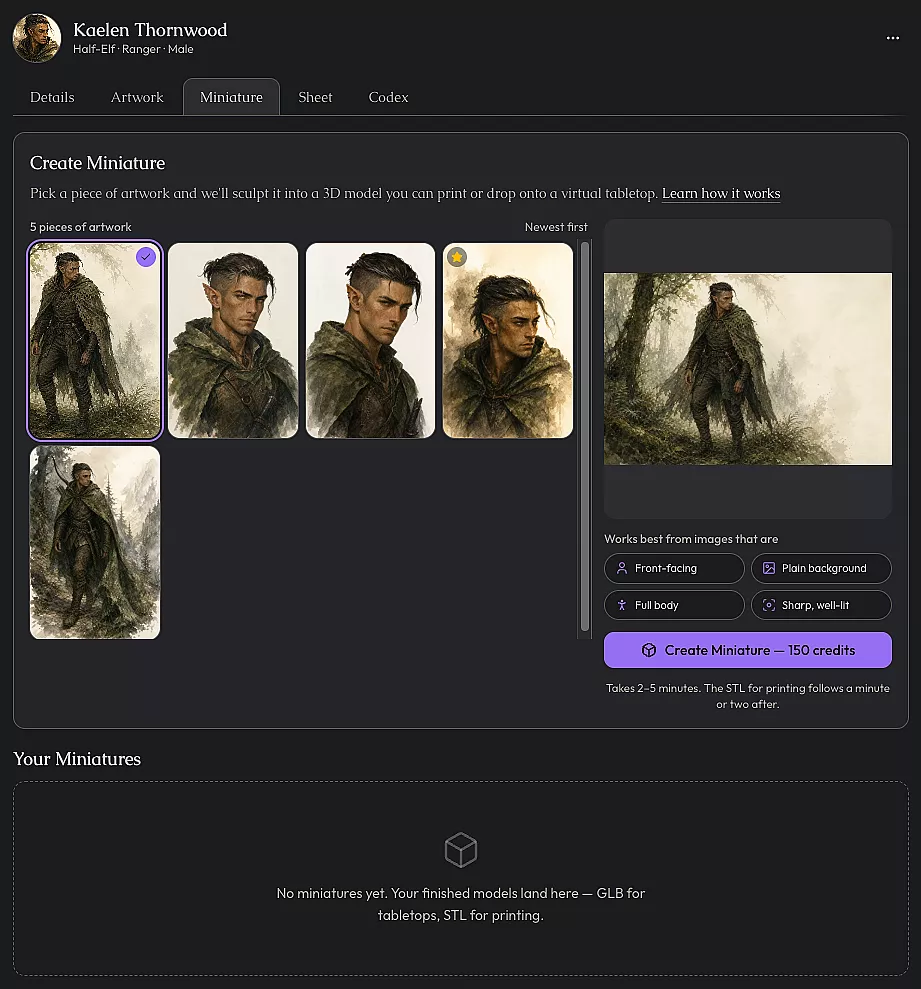
This is the one real decision the feature asks of you, so slow down for it. The generator only ever sees a single flat picture. Everything it can't see, it invents, and it invents badly. That's what the app's own advice is getting at. Front-facing. Plain background. Full body. Sharp, well-lit.
Kaelen's portrait fails the big one straight away. Head and shoulders only, so there's nothing below the collar to sculpt. The trail shot gives it a whole figure to work from, even though that mountain background isn't the plain backdrop it would prefer, and a busy background can get read as part of the model. Neither sample is ideal. Between the two it's the full-body shot every time.
There's a "Learn how it works" link on the card if you want the longer version. It opens an "About 3D Miniatures" explainer.
Fire it off
No style picker, no effort slider, nothing to size or count. The image you picked is the whole job. The button reads "Create Miniature" with the live price sitting on it, and that's the last thing between you and a model.
Tap it and you get a confirmation, "Create this miniature?", spelling out the cost and what your balance will be afterwards. The button to go through with it reads "Create".
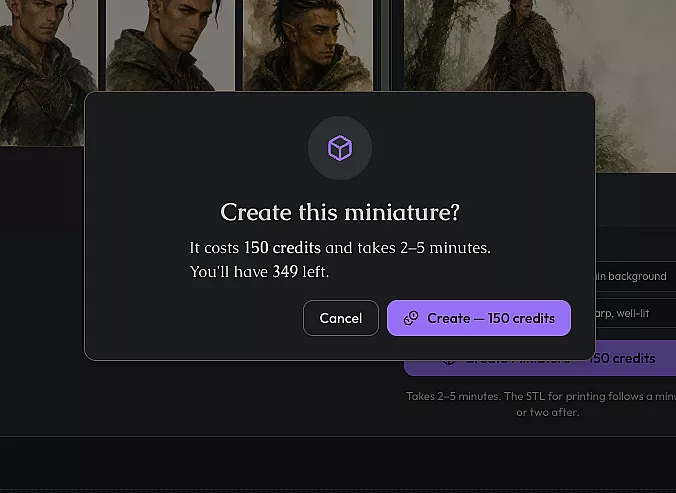
One thing worth knowing before you start. The free credits a new account comes with don't quite stretch to a miniature, so if you're short you'll get a top-up prompt rather than that confirmation.
While it runs
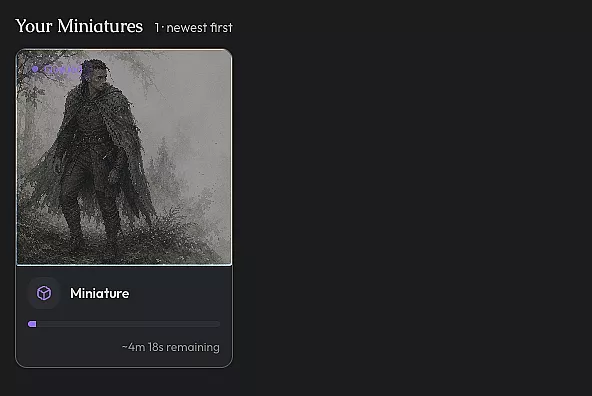
Scroll down to Your Miniatures and the card is already sitting there, with a progress bar, a time estimate, and a status pill moving from Queued to Processing. That's your running job. The create button up top goes back to normal, so don't read anything into it.
It updates live, so there's no babysitting the tab or hammering refresh. Wander off to another page and come back whenever. Figure on two to five minutes.
If something goes wrong
Failures refund automatically. The card shows a "Failed" badge with the error on it and a "Retry" button. Retrying charges you again, since the failed attempt already gave your credits back.
If it's dragging on you can cancel instead. Click the in-progress card, and once it's been running two minutes a cancel option appears. That refunds in full too.
The model arrives in two stages
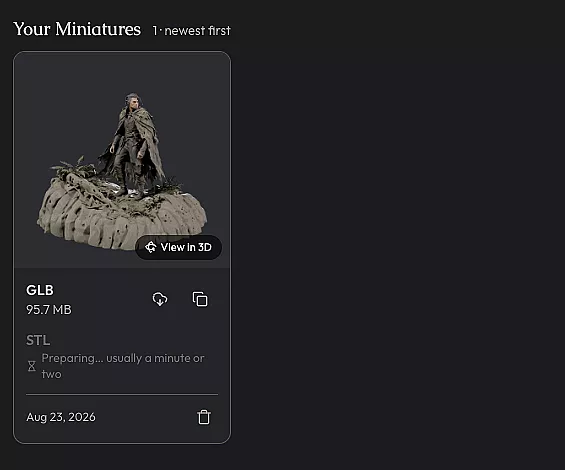
When it finishes, the progress card gives way to a model card, a thumbnail with a "View in 3D" badge sitting on it.
Don't assume both files are there yet. The GLB is what the generation actually produces and it's the thing that marks the job complete. The STL is a separate job that only starts once the GLB exists, and it lands a minute or two later on its own. So a card can look finished with the STL row still empty, and nothing is wrong. While you're waiting that row sits dimmed and reads "Preparing… usually a minute or two". It fills itself in live.
If it still hasn't appeared after about fifteen minutes, it isn't coming. The row quietly drops off rather than telling you so, which is your cue to run it again.
Have a look at the sculpt
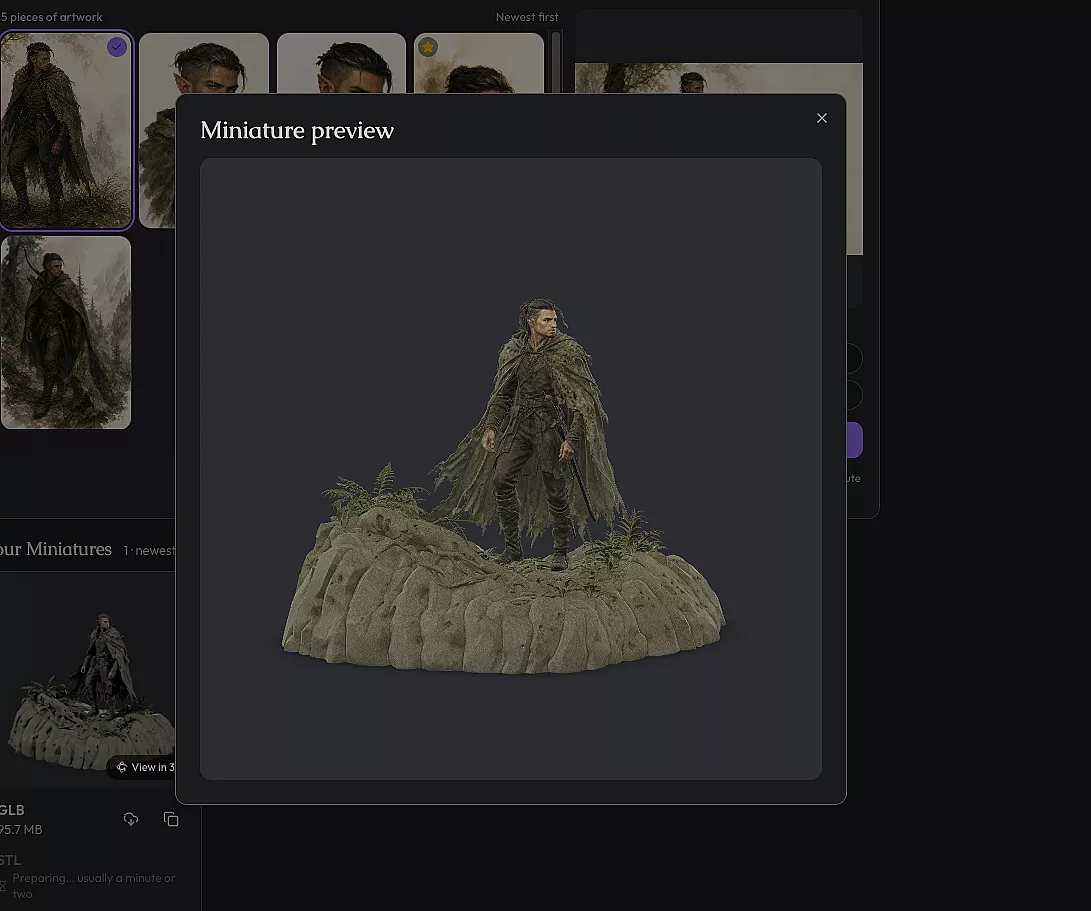
Tap the thumbnail and a "Miniature preview" dialog opens with a real 3D viewer in it. Drag to orbit, scroll or pinch to zoom, and it turns slowly on its own while you decide where to look first.
Spin him all the way round and check the back. The generator had to invent everything the source image didn't show, so the back of the cloak and the far side of that bow are where you'll see how well it guessed.
Get the files where they're going
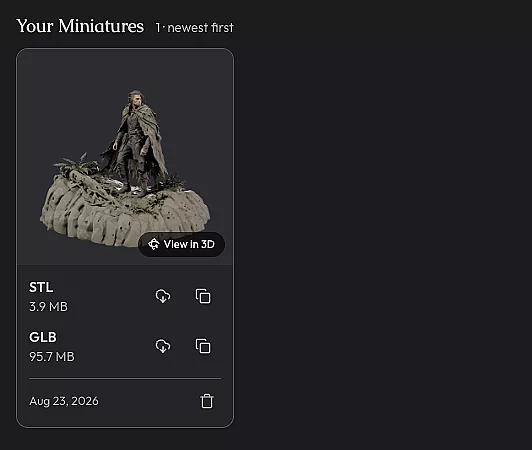
Each file on the card has its own download control, and a Copy URL control next to it. The link is quicker if you're pasting into something that pulls a model straight from a URL rather than a file.
GLB, for virtual tabletops
The GLB carries Kaelen's colours baked in, so it's the one for a virtual tabletop. TaleSpire and Foundry are the obvious homes for it. Do check your VTT actually handles 3D models before you count on it, because support varies a lot and some of them only deal in flat tokens.
They're a few megabytes each, so the download isn't instant.
STL, for printing
The STL is geometry only, no colour. That's your print file, and it's already scaled for 32mm, so it should drop into a slicer without you resizing anything.
The file gets you to the starting line and not much further, mind. Supports, resin or filament, cleanup after the print, that's all still a craft of its own.
Where they land
Everything you finish stacks up under "Your Miniatures", newest first.
And it isn't only player characters. NPCs and monsters have the same tab and produce the same two files, so the rest of your cast and your whole bestiary can come off the screen the same way.